
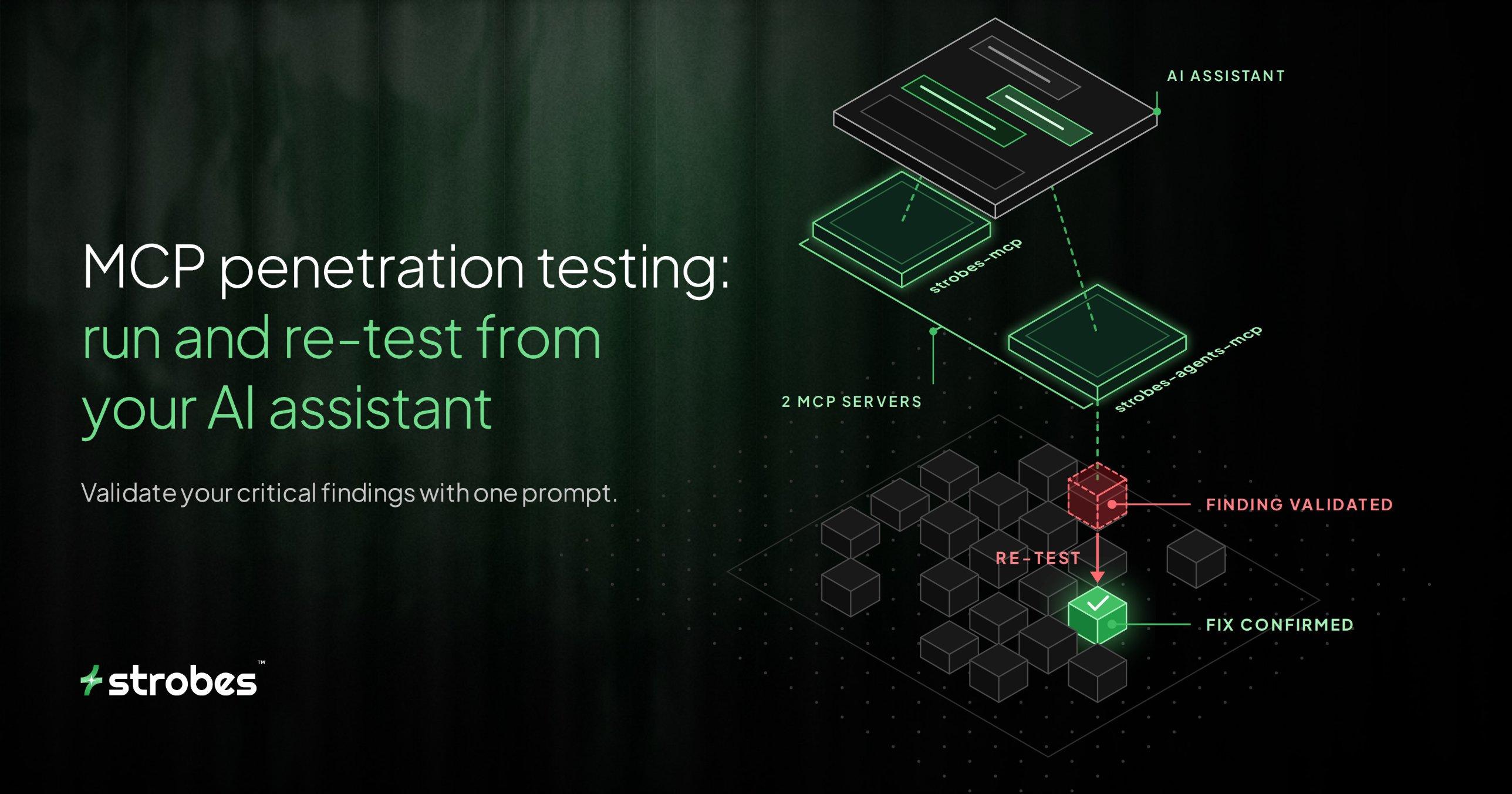
MCP penetration testing: run and re-test from your AI assistant

TL;DR
- ✓Strobes released two open-source MCP servers under GPL-3.0. strobes-mcp has 12 tools for assets, findings, engagements, and comments. strobes-agents-mcp has 23 tools for AI workspaces, agent tasks, and workflows.
- ✓From Claude Code or any MCP host, you can start an agentic pentest, follow its progress, pull its findings, validate existing findings, and re-test after a fix, all in plain language.
- ✓Both servers are an early release (version 0.1.0). They use one Strobes MasterKey, and each one connects to a single organization.
- ✓The agent features are also in the Strobes public GraphQL API (13 new queries and 9 new mutations), so you can run them from scripts and build pipelines.
- ✓Agent actions follow each workspace's supervisor mode. Auto is the default, so switch a workspace to User mode in Strobes when you want to approve every major step.
These days, a lot of security and engineering work happens inside an AI assistant like Claude Code. You ask it to explain a bug or write a fix, and it does the work right there in the chat.
Pentesting usually isn't part of that loop. Some tools let an assistant read scan results, but starting an actual test or confirming a fix still means switching to a separate platform. Each switch slows down the path from finding an issue to proving it's fixed.
That's why we built two new MCP servers for penetration testing. An MCP server is a connector that lets an AI assistant work with another tool, and ours plug your assistant into Strobes, our agentic pentesting platform. With them, your assistant can start a real pentest. Type something like "Run a web pentest on staging.acme.com," and it sets up the test and starts a Strobes AI agent. You can check on the agent while it works, pull its findings and report into the chat when it's done, and send it back to test again once you've fixed something.
The same goes for findings already in Strobes. Ask the assistant to change a finding's status or leave a note for your team, and it takes care of that too.
Below, we'll walk through a full pentest from start to finish and show you how to set it all up.
What are the Strobes MCP servers?
They're two open-source cybersecurity MCP servers. One works with the data already in your Strobes organization, and the other runs AI agents and pentests.
MCP stands for Model Context Protocol. It's an open standard, so the same servers work in Claude Code and in any other AI app that supports it.
strobes-mcp has 12 tools that cover assets, findings, engagements, and comments. It lets the assistant look up and update findings, add new assets and findings, set up engagements, and leave comments.
strobes-agents-mcp has 23 tools, and they're built around workspaces. A workspace is where an agent's work lives, including its tasks, files, findings, and assets. This server can create workspaces, start agent tasks like a web pentest, and stop or retry a task that goes wrong. When an agent finishes, the server pulls back its findings, assets, and files, including its report. For bigger jobs, it can also run multi-phase workflows from ready-made templates.
Both servers connect to Strobes the same way. They're built on a shared Python library called strobes-gql-client, which handles sign-in, requests, and errors for both of them. That library talks to the Strobes public GraphQL API. To set up a server, you give it three things: your Strobes web address, an API key (Strobes calls it a MasterKey), and your organization ID. Each server connects only to the organization named in its setup.
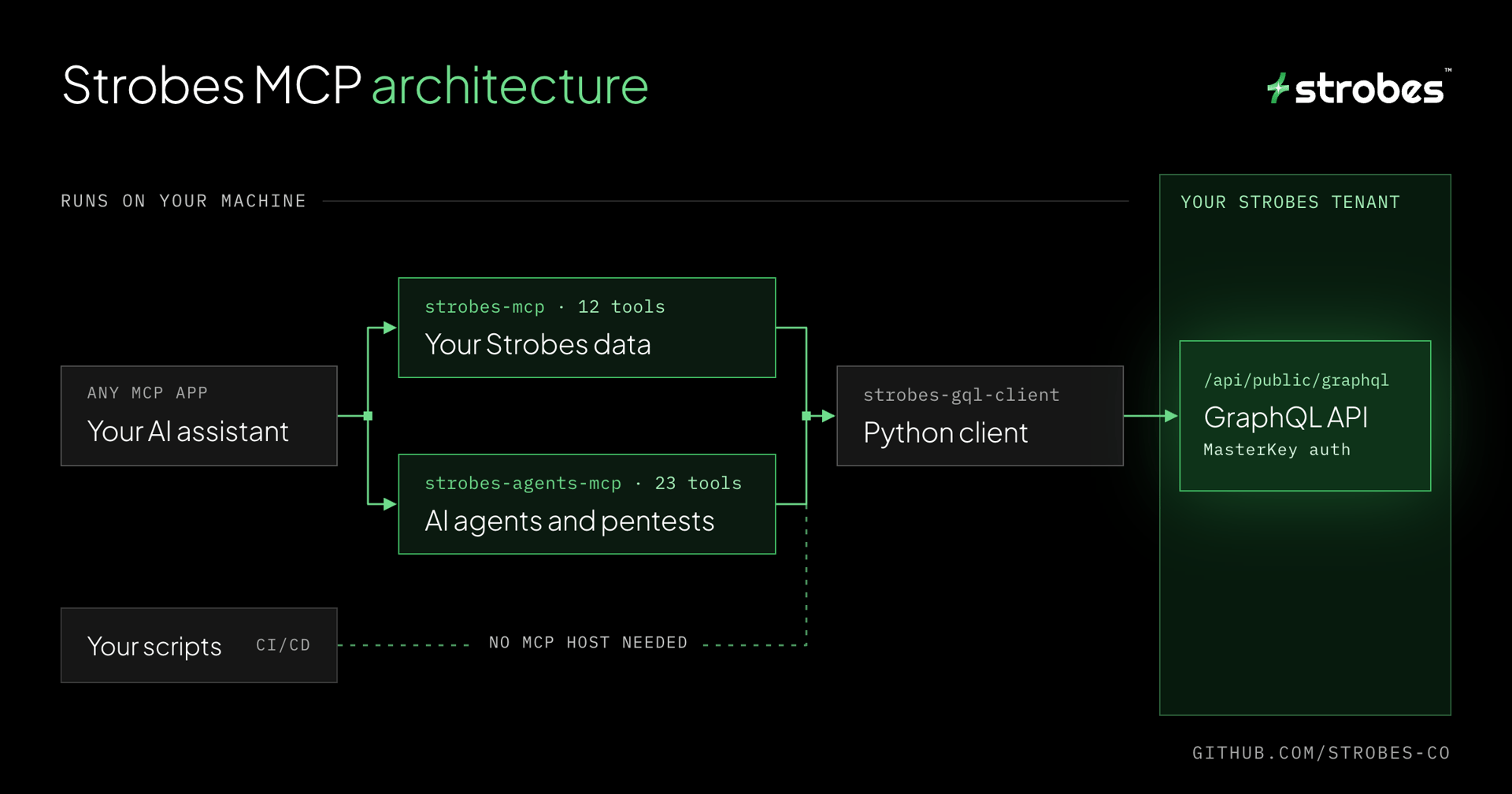
The agent features are now part of that public API too, so you can also run them from your own scripts.
Why use MCP for penetration testing?
It lets you describe what you want in plain words, and the assistant takes care of the exact steps. That makes a few everyday jobs a lot quicker.
Finding the right issues is a good example. In Strobes, you filter findings with a query like severity = 5 and state = 1, which means critical findings that are still open. With the MCP server, you just ask for "open critical findings," and the assistant writes that query for you. The Claude Code plugin also comes with a skill that teaches the assistant what each severity and state number means, so it doesn't have to guess.
Cleaning up findings gets faster too. Say a scan flagged the same false positive on 40 assets. You don't have to open each one. You can describe them in one message and ask the assistant to mark them all as false positives. A single tool call updates every finding that matches. Since one message can change a lot of findings, it's smart to ask the assistant to list them first.
It also helps with the fix. If you use Claude Code, the assistant can already see your codebase. So when a pentest finds an issue, you can bring the finding into the chat and ask the assistant to help fix the code right there. Once the fix is live on staging, you can ask for a re-test from the same chat to confirm the issue is really gone.
And when starting a pentest only takes a message, it's easier to test your staging site before every release. That's the idea behind continuous testing: checking your apps as often as they change.
What does MCP penetration testing look like in practice?
Here's what a full run looks like. Each step shows what you type, what the assistant does behind the scenes, and which tools it calls.
1. Check the connection
Start by asking, "Are you connected to Strobes?" The assistant calls strobes_whoami and strobes_agents_whoami. These confirm which Strobes host and organization each server is using, so you know the assistant is working in the right place before it touches anything.
2. Set up the engagement
Next, ask the assistant to "Create an agentic web-app engagement for staging.acme.com." It calls create_engagement and fills in the dates, services, and scope. An engagement is the Strobes record of a test. It keeps track of what's being tested and when.
3. Start the pentest
Now type, "Run a web pentest on staging.acme.com." The assistant does a few things here:
- It calls list_agents to find the right agent, which is web_pentest_agent for this job.
- It finds a workspace for the test. A task can only run in an active workspace, so the assistant either picks one with list_workspaces or creates a new one with create_workspace and links it to your engagement.
- It calls create_workspace_task with a title, the agent to use, and instructions that name the target.
The task goes into a queue and runs in the background. The assistant gets an answer right away, so you can keep working while the agent tests.
4. Check on it
Ask, "What is the pentest agent doing right now?" The assistant calls list_workspace_tasks to see the task's status, which can be queued, running, completed, failed, or cancelled. Then it calls get_task_messages to show you the agent's latest updates. The messages stay empty until the run actually starts, so don't worry if you see nothing at first. If something looks wrong, you can ask the assistant to cancel the task or run it again.
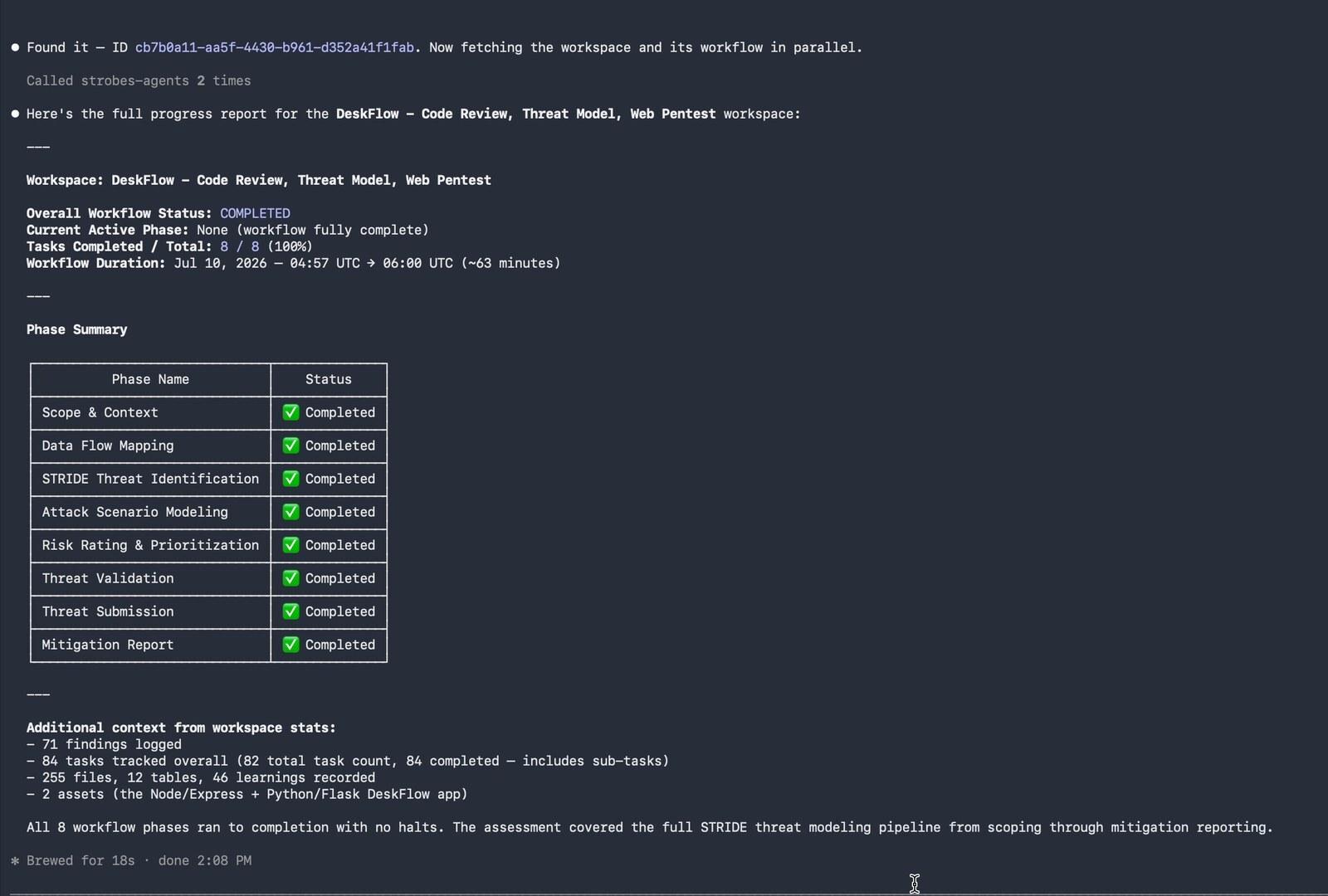
If you started a workflow, ask for the workspace's progress instead. The assistant calls get_workspace_workflow and shows each phase with its status, along with how many tasks are done.
5. Get the results
When the task is done, ask, "Show me what the agent found." The assistant calls list_workspace_findings for the findings and list_workspace_assets for any assets the agent discovered. To read the report, ask, "Pull the report the agent wrote." The assistant finds it with list_workspace_files and opens it with get_workspace_file. If you'd rather have everything, download_workspace gives you a zip file of the whole workspace.
6. Sort through the findings
You can also triage in the same chat, across all the findings in your Strobes organization. Ask for "open critical findings with a public exploit," and the assistant calls list_findings with the right query. To clean things up, say, "Mark findings 101 to 103 as false positives, with a note." The assistant calls update_findings to change their state and add_finding_comment to leave your note.
7. Validate findings and re-test fixes
The agents can also check findings you already have. Ask, "Can you start agent tasks to test all the critical findings?" The assistant pulls the critical findings and starts a separate task for each one with create_workspace_task. It picks the agent that fits each issue: web_pentest_agent for access control and logic flaws, api_pentest_agent for authentication and token problems, and exploit_agent for remote code execution chains. Each task gets its own instructions, covering what the finding is, how to test it, and what evidence to capture. The tasks run in parallel, and they show up in the Strobes platform too.
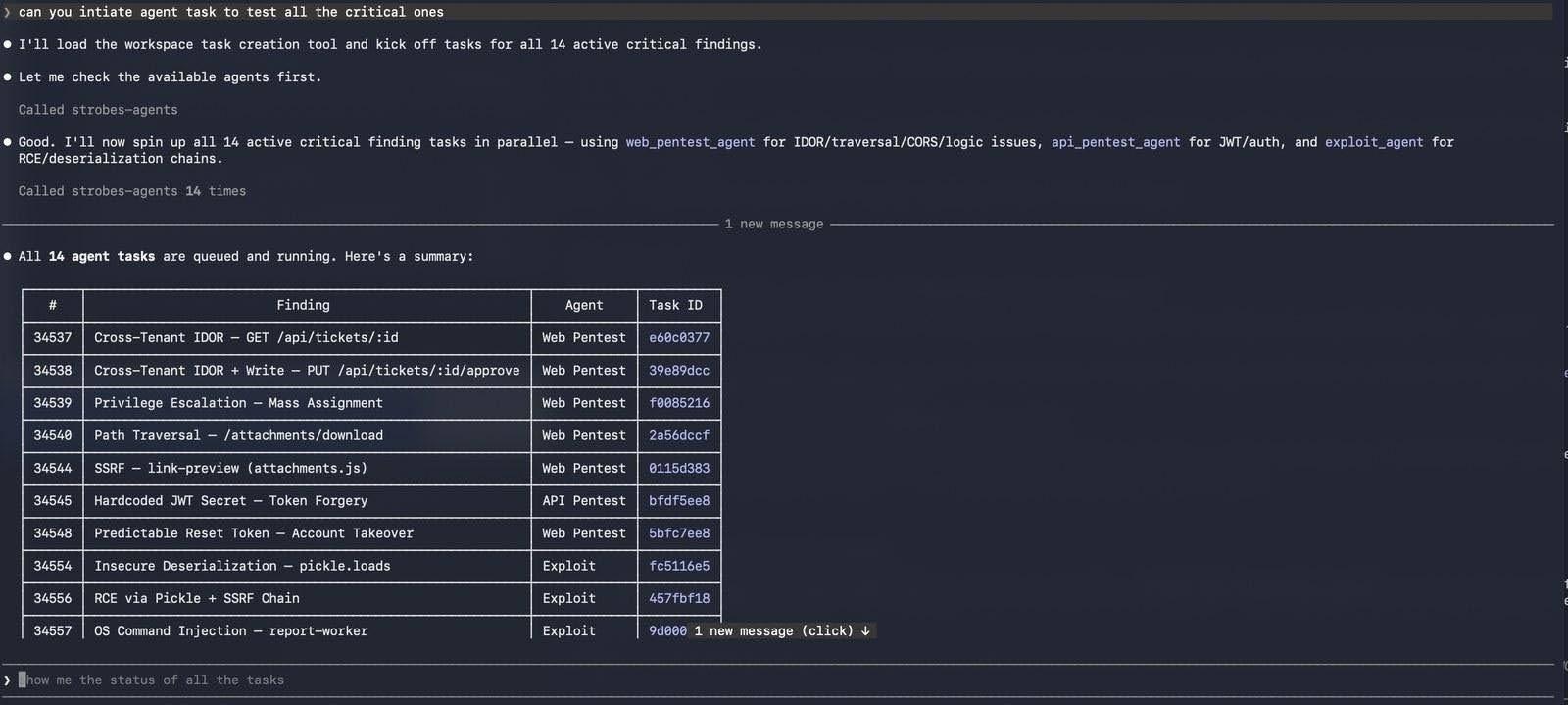
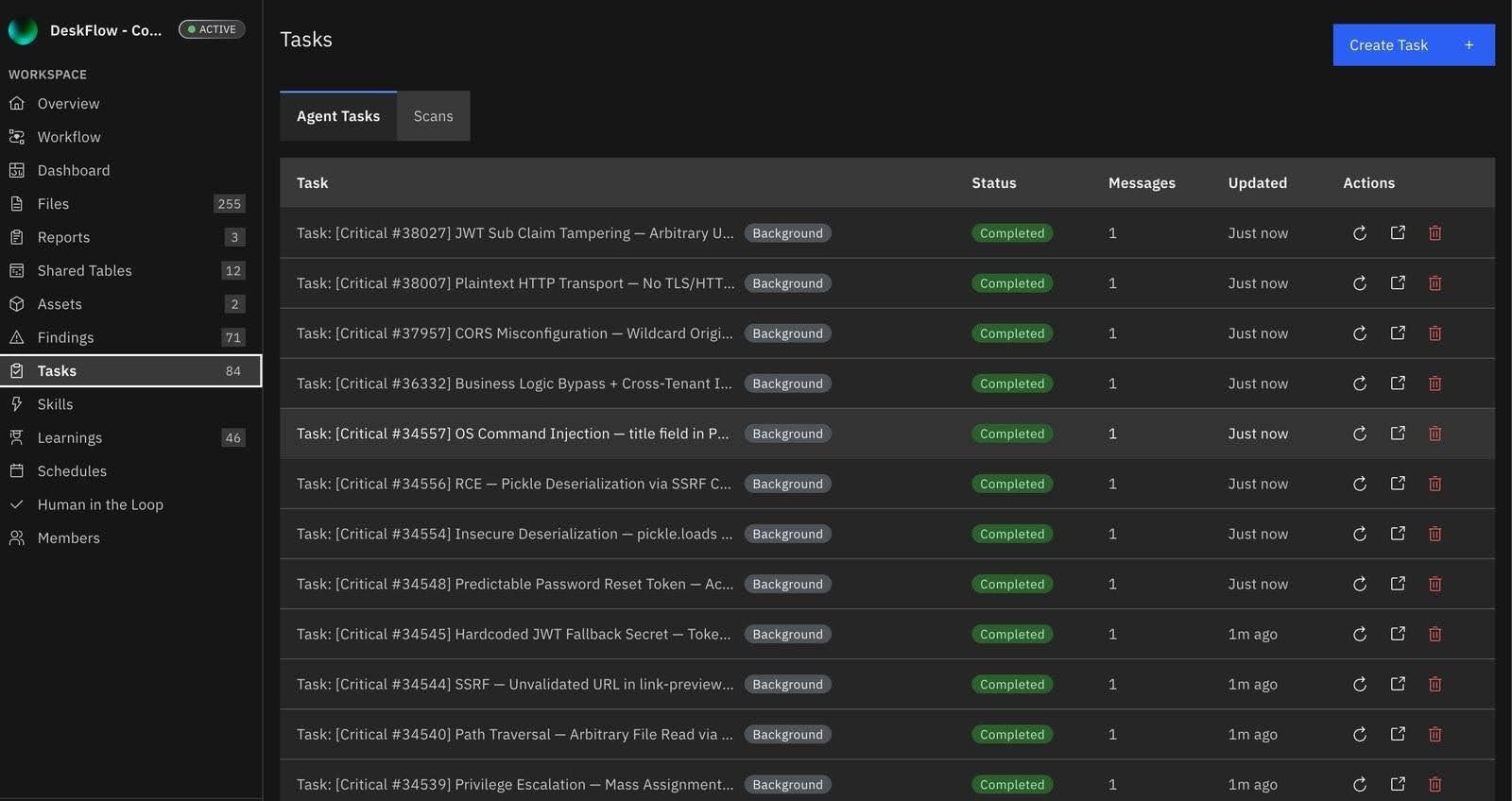
The same approach works after a fix. Once your fix is live on staging, ask the assistant to re-test that finding. When the task finishes, check the new results with list_workspace_findings to see whether the issue still shows up. A focused re-test like this also uses fewer AI credits than running the whole pentest again.
Running bigger tests with workflows
Some tests have several phases that run one after another. For those, there are workflows. The assistant calls list_workflow_templates to see which templates you have and what details each one needs. Then start_workflow creates a workspace from the template and starts the first phase. get_workspace_workflow shows which phase it's on, and you can pause, resume, or cancel it whenever you need to.
You can also set up and launch a workflow in one prompt. In the clip below, the assistant creates a web asset and an engagement, then starts a five-phase web app pentest workflow linked to that engagement.
What else can each server do?
The walkthrough used most of the tools, but not all of them. Here's the full list for each server.
strobes-mcp: 12 tools
| Tool | What it does |
|---|---|
| strobes_whoami | Confirms the host and organization, and returns the reference for severity and state numbers |
| list_assets · get_asset | Lists assets that match a query, or gets full details for one asset |
| create_asset | Adds a web, mobile, network, cloud, or code asset, with its sensitivity, exposure, and tags |
| list_findings | Lists findings that match a query |
| create_finding | Adds a finding on one or more assets, with severity, CVE or CWE, fix steps, and evidence |
| update_findings | Changes the state, severity, or due date of every finding that matches a query |
| list_engagements · create_engagement | Lists engagements, or creates one with dates, services, and scope |
| add_finding_comment | Adds a comment to a finding |
| add_engagement_comment · list_comments | Adds a comment to an engagement, or reads comments on either one |
strobes-agents-mcp: 23 tools
| Group | Tools |
|---|---|
| Connection and workspaces | strobes_agents_whoami, list_agents, list_workspaces, get_workspace, workspace_stats, create_workspace, archive_workspace |
| Tasks | list_workspace_tasks, create_workspace_task, cancel_workspace_task, retry_workspace_task, get_task_messages |
| Outputs | list_workspace_findings, list_workspace_assets, list_workspace_files, get_workspace_file, download_workspace |
| Workflows | list_workflow_templates, start_workflow, get_workspace_workflow, pause_workflow, resume_workflow, cancel_workflow |
Queries you can ask for
Most list tools filter with the Strobes query language. You don't have to write these yourself, but it helps to know what the assistant is building. Here are a few examples:
cvss >= 9 and exploit_available = true   # high-CVSS findings with a known exploit
type = 1 and risk_score >= 50            # risky web assets
tags in (pci) and state = 1              # open findings on PCI-tagged items
Built to work well with an AI model
The servers are also set up to keep the assistant on track. List tools return only the key fields, so long results don't crowd the assistant's memory. Inputs are checked before anything is saved. For example, a web finding has to include the affected endpoints. If something goes wrong, the error comes back in a format the assistant can read, so it can fix its request and try again.
What keeps an AI assistant from going out of scope?
An AI assistant that can start a pentest needs clear limits. Some are built into the servers and the Strobes platform. Others are up to you, and they matter just as much.
It can only reach one organization. Each server connects only to the organization named in its setup. No prompt can switch it to a different organization.
You decide what gets tested. The assistant passes your target to the agent in plain words, inside the task's instructions. So only point it at systems you own or have written permission to test. Linking each workspace to an engagement keeps a record of what was in scope and when. You can also add custom instructions to a workspace in Strobes, such as "Pause and ask me before testing any host outside staging.acme.com."
Auto mode is the default, so choose the mode on purpose. Every workspace has a supervisor mode. In Auto, the agent runs on its own and stops only before a small set of high-risk actions, like running an exploit. In User mode, it pauses before every major step and waits for your approval. For a first run or a sensitive target, switch the workspace to User mode in Strobes. You can check a workspace's current mode with get_workspace. None of the 23 MCP tools can approve an action, so every approval happens in the Strobes platform, where a person makes the call.
Watch for prompt injection. The agent reads content from the sites it tests, and some of that content comes back into your assistant through task messages and findings. A malicious page could include text written to steer an AI assistant, for example into closing real findings. Treat anything the agent brings back as untrusted. If your assistant asks before it runs a tool, keep that setting on, so you see every change before it happens. We cover this risk in more depth in our post on the security risks in MCP servers.
Check big changes before they run. update_findings changes every finding that matches a query, so a loose query can change more than you meant to. Before any bulk update, ask the assistant to run list_findings with the same query and show you what it matched.
Protect the MasterKey. Both servers sign in with your MasterKey, so anyone who has it can reach your Strobes organization through the API. Don't paste it into files you share or commit to source control. Where you can, load it from a password manager or secrets manager when your session starts.
Costs are easy to track. Agent tasks use AI credits, just like pentests started in the platform. Ask the assistant to run workspace_stats, and you'll see the credits a workspace has used along with its task, asset, and finding counts.
The code is open to review. Both servers are open source on GitHub. Before you give them your MasterKey, your team can review exactly what they do with it.
If you're trying the servers for the first time, start with a staging target and User mode, then loosen things up once you trust the setup.
What are the current limitations?
This is an early release, so it's worth knowing the limits before you roll it out to your team.
- Version 0.1.0. Both servers are new, and their tools may change as we get feedback.
- One organization per server. If you work across several Strobes organizations, you'll need a separate server setup for each one.
- AI credits apply. Every agent task, including re-tests, uses credits from your organization's allotment.
- Packaged for Claude Code. Claude Code gets a ready-made plugin for each server. Other MCP apps need the manual setup shown below.
Can you run these features without an AI assistant?
Yes. Everything the agents server does is also in the Strobes public GraphQL API, so you can start pentests and pull results from your own scripts, including your build pipeline. This release adds 13 queries and 9 mutations, and they use the same MasterKey. The strobes-gql-client Python library makes them easy to call, and its repo includes a full working example in examples/test-agents-workspaces-example.py.
If you also want Strobes connected to the other tools your team uses, like your ticketing system or code repos, see the full list of Strobes integrations.
How do you set up the Strobes MCP servers?
Before you start, you'll need:
- uv, which runs the servers on Python 3.10 or later
- A Strobes MasterKey, which you can create under Settings → API Access
- Your organization ID, which is a UUID
Both servers use these three environment variables:
| Variable | What it is |
|---|---|
| STROBES_HOST | Your Strobes tenant, like acme.strobes.co |
| STROBES_API_TOKEN | Your MasterKey |
| STROBES_ORGANIZATION_ID | Your organization ID |
If you run a self-hosted or local Strobes setup, there are also optional variables for the base URL, the host header, and TLS checks. The repo READMEs cover them.
In Claude Code
Run these four commands:
/plugin marketplace add strobes-co/strobes-mcp
/plugin install strobes-mcp@strobes
/plugin marketplace add strobes-co/strobes-agents-mcp
/plugin install strobes-agents-mcp@strobes-agents
Then set the three variables in your environment. The plugins read them when Claude Code starts, so restart it after you set them. For the API token, pull it from your secrets manager when you can instead of saving it in your shell profile.
In any other MCP host
First, clone both repos:
git clone https://github.com/strobes-co/strobes-mcp
git clone https://github.com/strobes-co/strobes-agents-mcp
Then add both servers to your host's MCP config. Use the full path to each folder you just cloned:
{
  "mcpServers": {
    "strobes": {
      "command": "uv",
      "args": ["run", "--directory", "/abs/path/to/strobes-mcp", "strobes-mcp"],
      "env": {
        "STROBES_HOST": "acme.strobes.co",
        "STROBES_API_TOKEN": "your-masterkey",
        "STROBES_ORGANIZATION_ID": "your-org-uuid"
      }
    },
    "strobes-agents": {
      "command": "uv",
      "args": ["run", "--directory", "/abs/path/to/strobes-agents-mcp", "strobes-agents-mcp"],
      "env": {
        "STROBES_HOST": "acme.strobes.co",
        "STROBES_API_TOKEN": "your-masterkey",
        "STROBES_ORGANIZATION_ID": "your-org-uuid"
      }
    }
  }
}
This file holds your MasterKey in plain text, so keep it out of source control and limit who can read it. If your MCP app can read values from environment variables, use that instead of pasting the key in.
Once it's set up, ask the assistant, "Are you connected to Strobes?" If it answers with your host and organization, you're ready to run your first test.
New to Strobes? You'll need a Strobes account to use the servers. You can get free AI credits for your first agentic pentest and try the full run above.
FAQ
What is a cybersecurity MCP server?
A cybersecurity MCP server is a connector that lets an AI assistant use a security tool directly. It follows the Model Context Protocol, an open standard, so any AI app that supports MCP can use it. With the Strobes servers, an assistant can start pentests and work with findings in your Strobes organization.
Are the Strobes MCP servers free and open source?
Yes. Both are public on GitHub under the GPL-3.0 license. To use them, you need a Strobes account and a MasterKey.
Which AI assistants work with the Strobes MCP servers?
Claude Code has a ready-made plugin for each server. Any other app that supports MCP can run them through a JSON config.
Is it safe to give an AI assistant access to vulnerability data?
It can be, if you set it up with care. Each server can only reach one organization, approvals happen in the Strobes platform, and the code is open for your team to review. Use User mode for first runs, keep your MasterKey out of plain-text files you share, and treat anything the agent brings back as untrusted.
Can I re-test a finding after I fix it?
Yes. Ask the assistant to re-test the finding on your staging site. It starts a new agent task that checks whether the issue is gone, which uses fewer AI credits than running the whole pentest again.
Does running a pentest through MCP use AI credits?
Yes. Agent tasks use AI credits the same way they do in the platform. The workspace_stats tool shows how many credits a workspace has used.
Can MSSPs use the Strobes MCP servers for multiple clients?
Each server connects to one organization, so you'd set up a separate server for each client organization.