
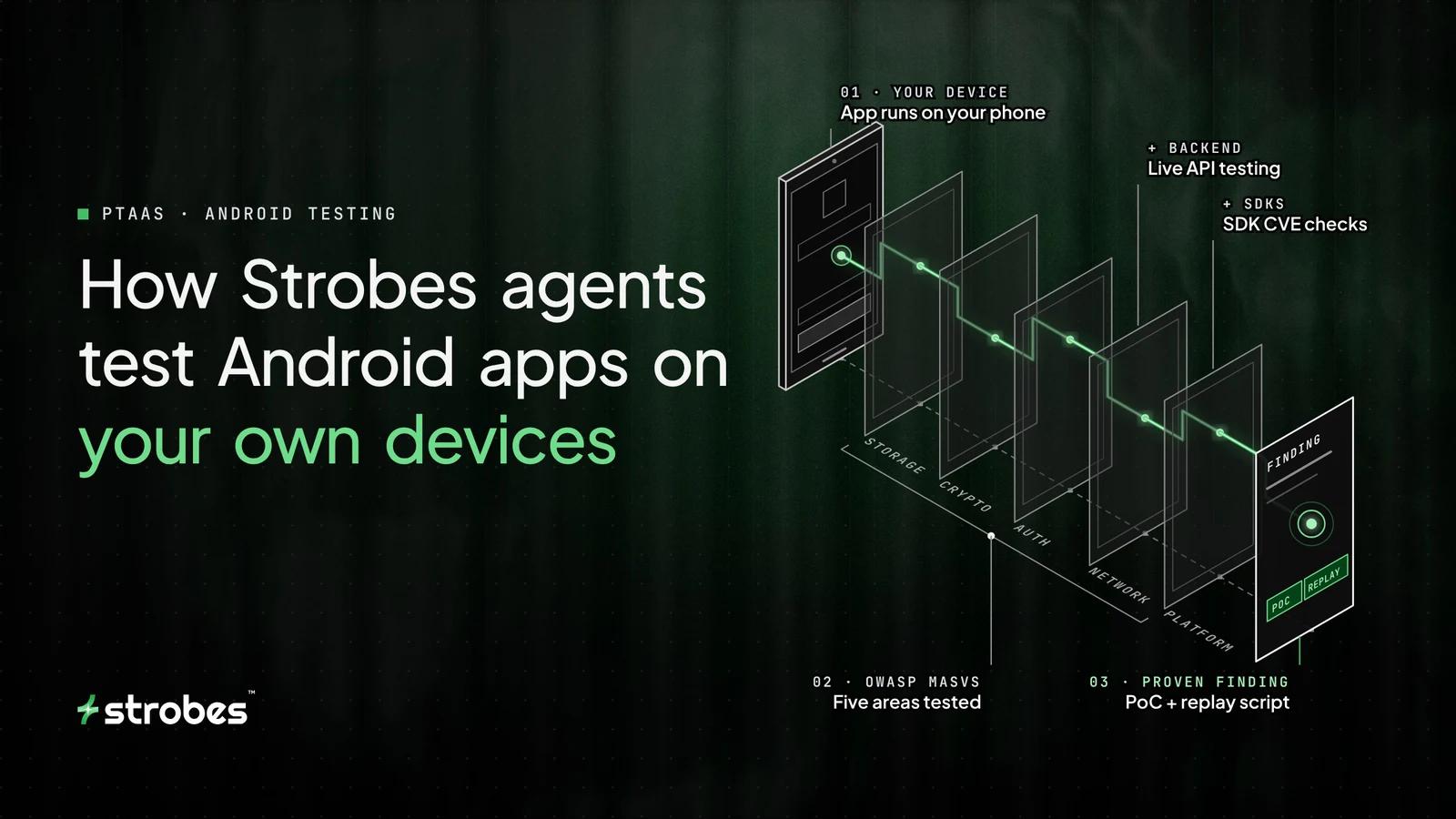
Strobes Agentic Pentesting Now Tests Android Apps on Your Own Devices
- ✓Strobes Agentic Pentesting now runs Android app pentesting on your own devices. Pair a rooted or non-rooted phone or emulator and the agent launches, navigates, and tests the app live.
- ✓It covers the dynamic part static scanners miss. The agent intercepts HTTP and HTTPS traffic, inspects on-device storage, and uses Frida to bypass SSL pinning and root detection.
- ✓Runs follow OWASP MASVS in five phases: static analysis, environment readiness, live app crawl, dynamic testing, and reporting.
- ✓Bring your own device, with guardrails. Outbound-only connections, blocked destructive commands, human approval for sensitive actions, and one session per device.
- ✓Available now for Android. iOS support is on the roadmap.
Strobes Agentic Pentesting can now test Android apps on your own devices. Connect an Android phone or emulator, and the Strobes agent launches your app and moves through its screens. It captures the app’s traffic and turns what it finds into verified findings in your workspace.
Most automated tools stop at scanning the APK, the file you install an app from, for hardcoded keys, risky permissions, and outdated libraries. The issues behind real incidents show up when the app runs: an API that returns another user’s data, an auth token saved in plain text after login, or a certificate check that can be switched off in minutes.
Catching those takes dynamic testing, or DAST, which has meant a tester with a prepared phone, a traffic proxy, and several days of tapping through screens by hand. With the new Test Devices feature, the agent does that work on devices you already have.
What this feature does
Test Devices let the Strobes agent drive a real Android device during a mobile pentest: it launches the app, navigates it, intercepts its traffic, and instruments it at runtime. Before this release, the dynamic part of a mobile assessment in Strobes ended with a runbook: a list of commands and proxy steps for a person to run manually. When a device is connected, the agent now handles that step itself. The device you register becomes part of your testing infrastructure, and any mobile pentest engagement in your organization can use it.
Why we chose a bring-your-own-device (BYOD) model
Security teams already have test hardware. Many keep a spare Pixel with Magisk installed, a few older phones for compatibility checks, or Android emulators running on a workstation. We built this feature so you can test on the devices you already trust, with no need to send apps to a device farm outside your control.
This approach has a few practical benefits:
- You control the environment. The device sits on your network, runs the Android version you choose, and holds only the test accounts you put on it.
- It works with what you have. Physical phones and emulators are both supported. Rooted devices unlock the full set of testing capabilities, and non-rooted devices support a reduced set (see below). Rooting means gaining administrator level access to the Android operating system, usually through a tool such as Magisk, KernelSU, or APatch.
- Setup happens once. After a device is paired, it stays available for future engagements without re-configuration.
How to connect a device
Setup takes a few minutes, and once paired, the device needs no USB cable.
- Register the device. In Strobes, go to Settings, then Test Devices, and click Register device. Give it a descriptive name, for example “Pixel 6 rooted” or “Android 14 emulator.”
- Install the Strobes Bridge app. Download the APK from the Test Devices page and install it on the phone or emulator. Strobes Bridge is a small companion app that runs on the device and carries instructions between the device and the Strobes agent. It supports Android 8.0 and newer.
- Pair it. Strobes generates a pairing link that starts with
strobesbridge://pair. Send that link to the device through Notes, email, or Slack and open it. The Bridge app fills in the server address, organization ID, bridge ID, and access token for you in one tap. If you prefer, you can copy each field into the app by hand.
Strobes Bridge paired and connected on a test device - Confirm the connection. Back in Strobes, the device’s status changes to connected. The page checks the connection every few seconds, so you can see this right away. From then on, the app reconnects automatically, even after the device reboots.

The pairing token is displayed only once when you register the device. If you lose it, you can regenerate a new one from the device’s menu and pair again.
On a rooted device, the Bridge app detects root access automatically. On a non-rooted device, the setup wizard asks you to turn on Android’s Accessibility Service, which is the system feature that lets an app read the screen and perform taps on the user’s behalf. The agent uses it to drive the interface.
Running a mobile app pentest
Once a device is connected, start an Agentic Pentest and choose the Mobile App Pentest (Android) engagement type. Upload the APK for the app you want to test and start the run.
The agent works through five phases aligned with OWASP MASVS, the Mobile Application Security Verification Standard, which is the industry checklist for what a secure mobile app should do.
- Static analysis. The agent examines the APK itself, looking at its manifest, permissions, embedded secrets, third-party libraries, and code patterns.
- Environment readiness. The agent looks for an available connected device, checks that it is ready, and confirms any setup needed for testing, such as certificate handling or bypasses for security controls in the app. If no device is connected, the agent falls back to a manual runbook for the dynamic steps.
- Live app crawl. The agent installs the app on rooted devices, launches it, then moves through it screen by screen. It reads the on-screen layout, takes screenshots, taps buttons, fills in forms, and records which parts of the app it reached. On a non-rooted device, install the app yourself before starting the run.
- Dynamic testing. Using what it learned during the crawl, the agent tests how the app behaves: what it sends over the network, what it stores on the device, how it handles sessions, and whether its protections can be bypassed.
- Reporting. Findings are written up with supporting evidence and added to your workspace alongside findings from your other engagements.
Phases 2 through 5 run in order on the same device, so the dynamic tests build on the screens and flows the crawl actually reached. You do not need to assign a device by hand. The agent lists the available devices and reserves one on its own.


What the agent can do on the device
The agent has a set of tools for working with the device directly:
- Navigation. Tap, swipe, type text, press system keys, take screenshots, and read a structured view of the current screen, including which elements can be tapped and where they sit. It also recognizes app-not-responding errors and system dialogs so it can deal with them without getting stuck.
- App management. Install APKs, including split APKs (apps delivered as several files), and list installed packages.
- Traffic interception. Run a man-in-the-middle (MITM) proxy on the device. A MITM proxy sits between the app and its servers so the traffic between them can be read and analyzed. Every captured HTTP and HTTPS request goes into your workspace’s HTTP history, where the rest of the assessment can use it.
- Runtime instrumentation. Use Frida, an open-source toolkit that injects code into a running app, to get around SSL pinning and root detection. SSL pinning is a technique where an app accepts only a specific certificate, which normally blocks inspection of its traffic. Root detection is a check that makes an app refuse to run on a rooted phone. Bypassing both lets the agent keep testing apps that are built to resist it.
- Device information. Read network details, system logs through logcat (Android’s built-in log viewer), and device identifiers.
- SMS handling. Read incoming text messages, filtered by sender, so the agent can complete login flows that depend on one-time passcodes sent by SMS.
- File access. Read, write, upload, and download files, which lets the agent check whether an app saves sensitive data on the device in an unsafe way.
Capabilities depend on whether the device is rooted. A rooted device or rooted emulator supports the full toolset. A non-rooted device supports UI navigation through Accessibility, launching and listing apps, limited SMS reading, and file access inside the app sandbox. It cannot install APKs, intercept traffic, or run Frida yet. For a full dynamic assessment, use a rooted device or rooted emulator.
| Capability | Rooted device | Non-rooted device |
|---|---|---|
| Navigate the app | Yes | Yes, through Accessibility |
| Launch and list installed apps | Yes | Yes |
| Install APKs (single or split) | Yes | No |
| Shell commands | Yes | No |
| Intercept HTTP and HTTPS traffic | Yes | Not yet |
| Frida (SSL pinning and root detection bypass) | Yes | No |
| Device identifiers | Yes | No |
| Read SMS | Yes | Limited |
| File access | Full | App sandbox only |
Security and safety controls
Handing an AI agent control of a real device calls for strict boundaries. These are built into the feature:
- Outbound connections only. The Bridge app connects out to Strobes over a WebSocket, a persistent two-way connection over the web. The device does not open any port for incoming connections, so nothing can reach the device through Strobes.
- Destructive commands are blocked. The Bridge app refuses commands that could damage the device or wipe it, before they are ever executed.
- A person approves sensitive actions. Turning on Frida, installing a system certificate authority (the trusted root certificate that lets the proxy read encrypted traffic), and rebooting the device each require someone to tap to approve on the device itself.
- One session per device. When the agent is using a device, it holds an exclusive reservation, so two engagements cannot drive the same screen at once. If a run crashes, the reservation expires on its own after 15 minutes. Admins can also release it manually from the Test Devices page.
- Revocable access. Each device has its own token scoped to your organization. You can regenerate or revoke it at any time, and revoking it cuts off the device immediately.
We recommend using dedicated test devices, not personal phones, because the agent can read SMS messages, device identifiers, and app data during testing.
Part of the same platform
Test Devices extend the same Strobes agentic pentester that already tests your web applications, APIs, and cloud environments. Mobile findings appear in the same workspaces, follow the same triage workflow, and show up in the same reports. For teams running continuous testing, mobile apps can now follow the same schedule as the rest of the attack surface, with no wait for the next manual assessment.
Availability
Android Test Devices are available now in the Agentic Pentesting module. iOS support is on our roadmap. To get started, go to Settings, then Test Devices, register a device, and run the agent against your next build.
Not a Strobes customer yet? Book a demo to see agentic mobile app pentesting on a live device.
Frequently asked questions
Can Strobes pentest Android apps on my own devices?
Yes. Register an Android phone or emulator under Settings, then Test Devices, install the Strobes Bridge app, and pair it. The Strobes agent then launches, navigates, and tests your app on that device during a Mobile App Pentest (Android) engagement.
Do I need a rooted Android device?
No, but root unlocks the full toolset. A rooted device or rooted emulator supports APK installs, shell commands, HTTP and HTTPS traffic interception, and Frida. A non-rooted device supports UI navigation through Accessibility, launching and listing apps, limited SMS reading, and file access inside the app sandbox.
Which Android versions does Strobes Bridge support?
Strobes Bridge supports Android 8.0 and newer. Physical phones and emulators are both supported.
Can the agent bypass SSL pinning and root detection?
Yes, on rooted devices. The agent uses Frida, an open-source runtime instrumentation toolkit, to get around SSL pinning and root detection so it can keep testing apps built to resist inspection.
How is the device kept safe while the agent controls it?
The Bridge app only makes outbound WebSocket connections, refuses destructive commands, and requires a person to approve sensitive actions such as enabling Frida, installing a system CA, or rebooting. Each device has a revocable, organization-scoped token and one exclusive session at a time.
Does Strobes support iOS app pentesting on devices?
Android Test Devices are available now. iOS support is on the Strobes roadmap.